Use CADshift for AutoCAD in ChatGPT
CADshift isn’t listed in ChatGPT’s app directory; you add it to your workspace as a custom app, using the CADshift server address.
ChatGPT talks to the CADshift relay at cadshift.com, and the relay passes each request to the AutoCAD on your PC.
ChatGPT's menus change
What you need
- AutoCAD 2025, 2026 or 2027 open on your PC, with the CADshift for AutoCAD plugin installed and signed in (see Connect your AI assistant and step 1 of ChatGPT). The work happens in your AutoCAD, so it must be open.
- A CADshift account with an active AI for AutoCAD subscription or trial.
- A ChatGPT Business, Enterprise or Edu workspace.
- Developer mode allowed for the workspace, so that custom MCP apps can run tools that change things, such as drawing in AutoCAD. See For IT: add CADshift to ChatGPT and OpenAI’s help centre for the current steps.
You enter only the server address. ChatGPT finds the sign-in details by itself (OAuth with dynamic client registration), so there is no client ID or secret to type.
| Server address (MCP server URL) | https://cadshift.com/mcp |
| Authentication | OAuth |
Add and connect it
A workspace admin adds the app once, and then each user connects it to their own CADshift account.
1. The admin adds the custom app
The workspace must allow developer mode (custom MCP apps with write actions) before tools that change drawings work. Where that switch is changes with ChatGPT’s releases, so follow OpenAI’s help centre for the current steps; the IT page has the details. If you can’t see the options below, you may not have the right admin permission.
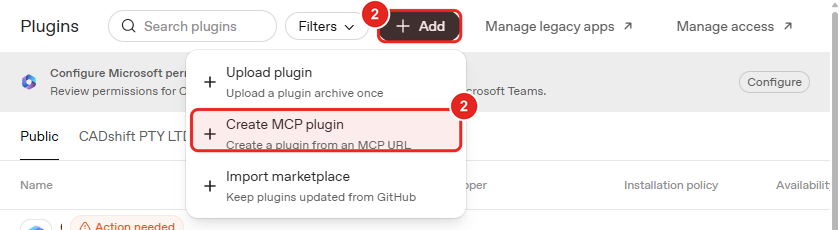
As a workspace admin, open the workspace settings at admin.openai.com and go to Plugins.
Press Add and choose Create MCP plugin (Create a plugin from an MCP URL).
In the New custom plugin form, enter CADshift for AutoCAD in the Custom name field, an optional description, and the server URL
https://cadshift.com/mcp. Leave Authentication on OAuth.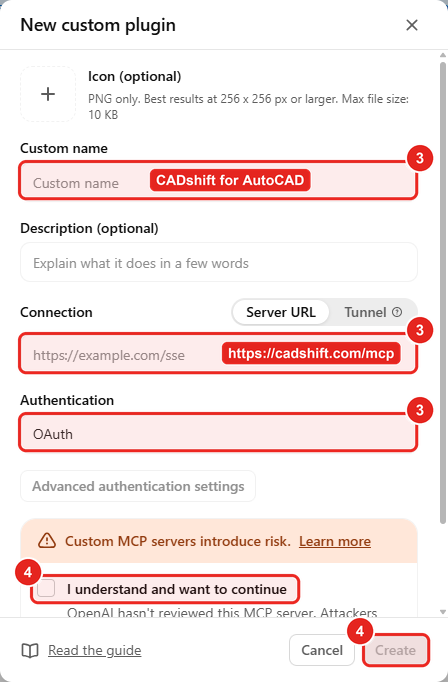
Read ChatGPT’s warning about custom MCP servers, tick I understand and want to continue, and press Create.
Approve the app for your workspace and choose who can use it, using the installation policy and availability settings on the same page.
2. Each user connects
In ChatGPT, open Settings and choose Plugins. CADshift for AutoCAD is in the list.
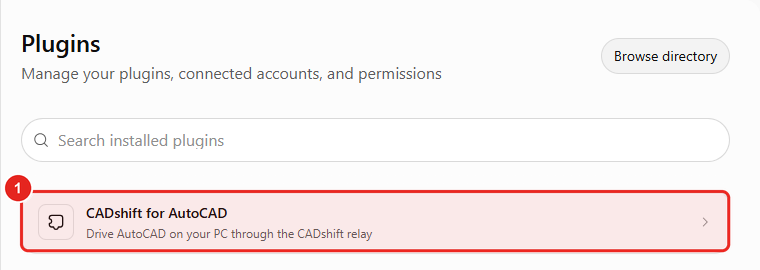
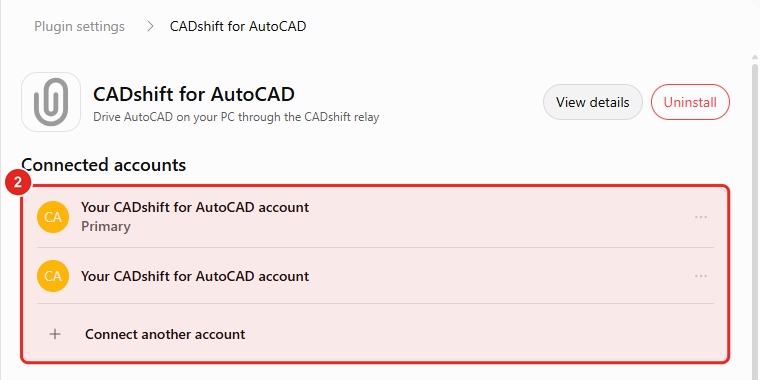
Open CADshift for AutoCAD and press Connect. After you connect, the page lists your connected accounts under Connected accounts, and Connect another account adds one more.
ChatGPT opens cadshift.com. Sign in with your CADshift email and password, or with Microsoft or Google if that is how you registered.
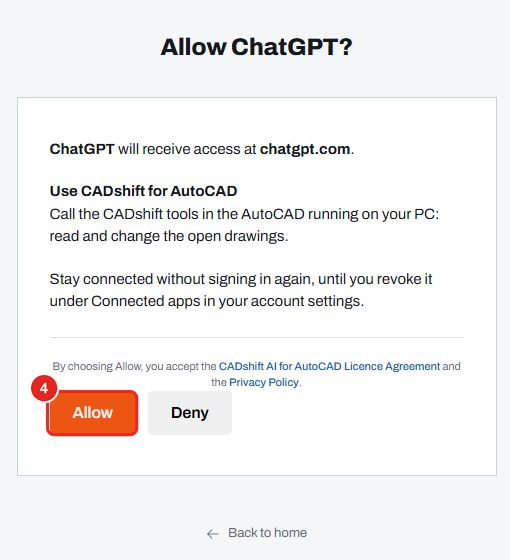
On the Allow ChatGPT? page, check what ChatGPT asks for and press Allow. (Deny cancels the connection.)
Ask something
Open AutoCAD with a drawing loaded.
In a new ChatGPT chat, type
@CADshift for AutoCAD, or press + next to the message box and choose CADshift for AutoCAD.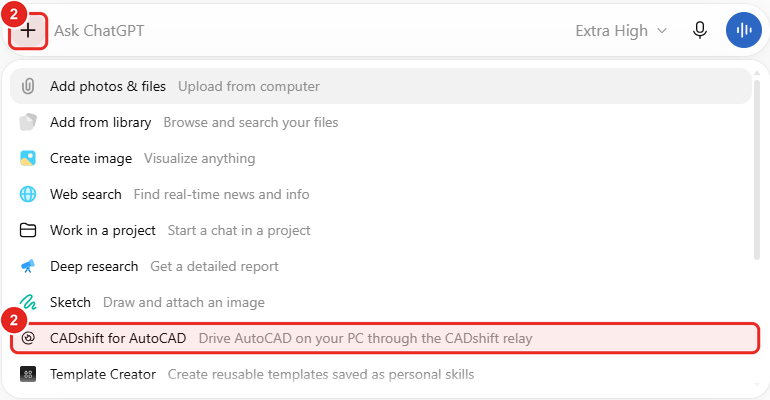
Ask, for example: “What drawing is open in AutoCAD and how many layers does it have?”
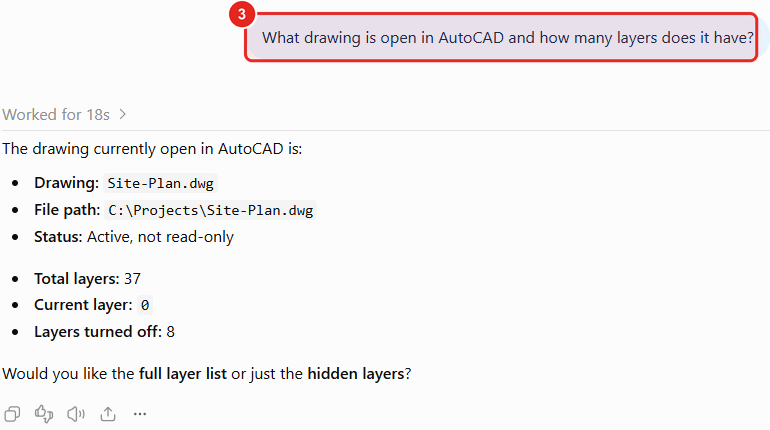
ChatGPT may ask you to confirm some actions first. See ChatGPT. Every change is one undo step in AutoCAD, so U undoes it.
On your phone
Once you are connected, the app also works in the ChatGPT phone app, because the connection belongs to your ChatGPT account. Your PC still has to be on, with AutoCAD open and signed in, because that is where the work happens.
Disconnect
- On cadshift.com, open your account, go to Connected apps and press Revoke next to ChatGPT.
- Or in ChatGPT, open Settings, then Plugins, open CADshift for AutoCAD and disconnect your account.
If it doesn’t work
| What you see | What to do |
|---|---|
| CADshift for AutoCAD isn’t in ChatGPT’s list | The app hasn’t been added or approved for your workspace yet. Ask your workspace admin. |
| ChatGPT says this computer has no active CADshift licence | Every computer needs the plan’s licence key activated once, ChatGPT too (CADshift 0.6.3 and later). In AutoCAD press the CADshift button, open the Licence tab, paste the key from cadshift.com (CADshift AI for AutoCAD, Subscription & licences) and press Activate. |
| ChatGPT says no AutoCAD is connected for this account | Open AutoCAD and press the CADshift button. If the Account line isn’t signed in, press Sign in on the Account tab. If it is, ChatGPT is connected with a different CADshift account from AutoCAD’s: disconnect and connect again with the one you use in AutoCAD. |
| ChatGPT says the account has no AI for AutoCAD subscription or trial | Subscribe, or start your trial, at cadshift.com with the account you connected. |
| ChatGPT asks you to sign in again | Your connection ended, or was revoked. Connect again. |
More in Troubleshooting.
- Previous
- ChatGPT for users