Connect Claude Desktop, step by step
This page shows where to click to connect Claude Desktop to CADshift AI for AutoCAD. Claude talks straight to the CADshift plugin in the AutoCAD on your PC, so nothing goes over the internet to CADshift.
In the screenshots, a red box shows what to click and the red number matches the step number below. Screenshots are illustrative (drawing names and paths, and parts of the windows, are changed or cropped): your window may look a little different, and the menus of the apps change as they are updated.
What you need
- CADshift AI for AutoCAD installed (see Connect your AI assistant) and AutoCAD 2025, 2026 or 2027.
- Claude Desktop installed on the same PC.
Connect it
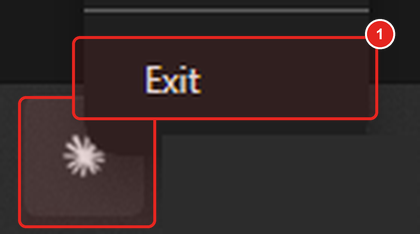
Quit Claude Desktop completely, before you run the installer. Closing the window is not enough, because Claude keeps running in the notification area next to the clock (click the ^ arrow if you can’t see it). Right-click the Claude icon and choose Quit (or Exit; it reads Exit in the version we checked). Claude rewrites its settings when it closes, which can undo the change if it is still open during the install.
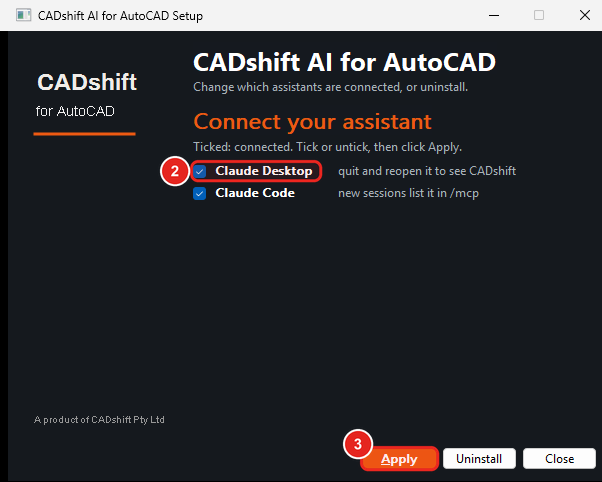
Tick Claude Desktop in the installer. On the installer’s Connect your assistant page, the AI apps found on your PC are listed, ticked. Make sure Claude Desktop is ticked. (The same page opens later from Windows Settings > Apps > Installed apps > CADshift AI for AutoCAD > Modify, see Automatic set-up.)
Click the button at the bottom right. When you install CADshift for the first time the installer’s button starts the installation; on the Modify page shown here it says Apply.
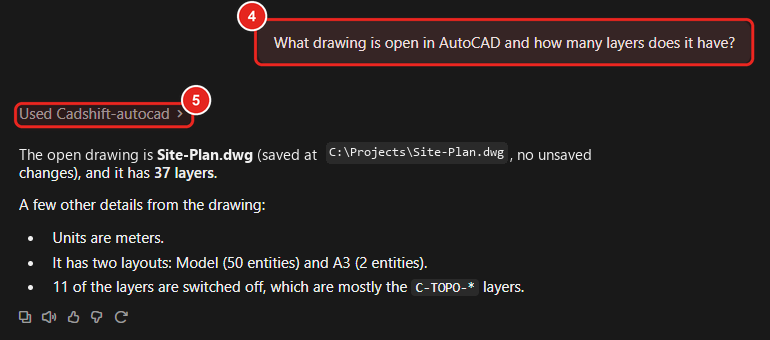
Start Claude Desktop again and ask about your drawing. Open AutoCAD with a drawing, then in a new Claude chat ask: “What drawing is open in AutoCAD and how many layers does it have?”
Check that Claude used CADshift. Claude shows that it used cadshift-autocad and answers from your drawing. The first time, Claude asks your permission before using a CADshift tool. Choose Always allow if you want it to stop asking. We could not capture that prompt, so it is not shown here, and the wording may differ in your version of Claude.
Every change Claude makes in AutoCAD is one undo step, so U undoes it.
If Claude Desktop was installed after CADshift
CADshift can only connect apps that are already on the PC. Connect Claude Desktop afterwards from AutoCAD:
In AutoCAD, open the CADshift ribbon tab and press the CADshift button. (Before CADshift 0.6.3 the button was Status, in the Setup panel, as in the screenshot.)

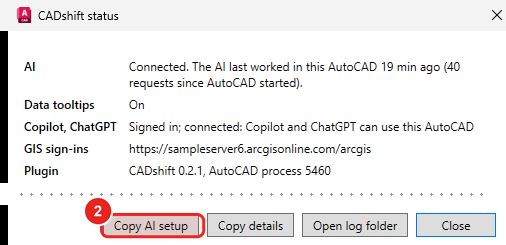
In the CADshift status window, press Copy AI setup. (The AI row also tells you whether an AI has worked in this AutoCAD yet.) The window is shortened in this screenshot.
Or run one command, with Claude Desktop quit first: cadshift-autocad-setup-cli.exe --register claude-desktop. See One command per app. To connect Claude Desktop by editing its settings file yourself, see Claude Desktop, by hand.
If it doesn’t work
- CADshift isn’t in Claude: quit Claude from the notification area and open it again. See Troubleshooting.
- Claude says it can’t reach AutoCAD: AutoCAD must be open on this PC while Claude works.
- Previous
- Automatic set-up